Triton Sensor Integrationwith Turing Vision
Turing Vision platform allows Triton sensors to be connected through a cloud based integration. When a Triton sensor detects an event, the integration sends that alert to Turing Vision and allows alerts to be recorded to the corresponding camera recording.
Intelligent Sensor-to-Camera Alerting
A seamless cloud integration that connects Triton's sensor intelligence with Turing Vision's AI-powered video security platform.
Cloud-Based Integration
Turing Vision allows Triton sensors to be connected through a cloud-based integration — no additional on-site hardware required.
Real-Time Alerts
When a Triton sensor detects an event, the integration sends that alert to Turing Vision and allows it to be recorded to the corresponding camera recording.
Camera-Linked Events
Map each sensor to a camera using the camera's serial number from Camera Settings. Alerts are tied directly to that camera's recording.
Comprehensive Event Types
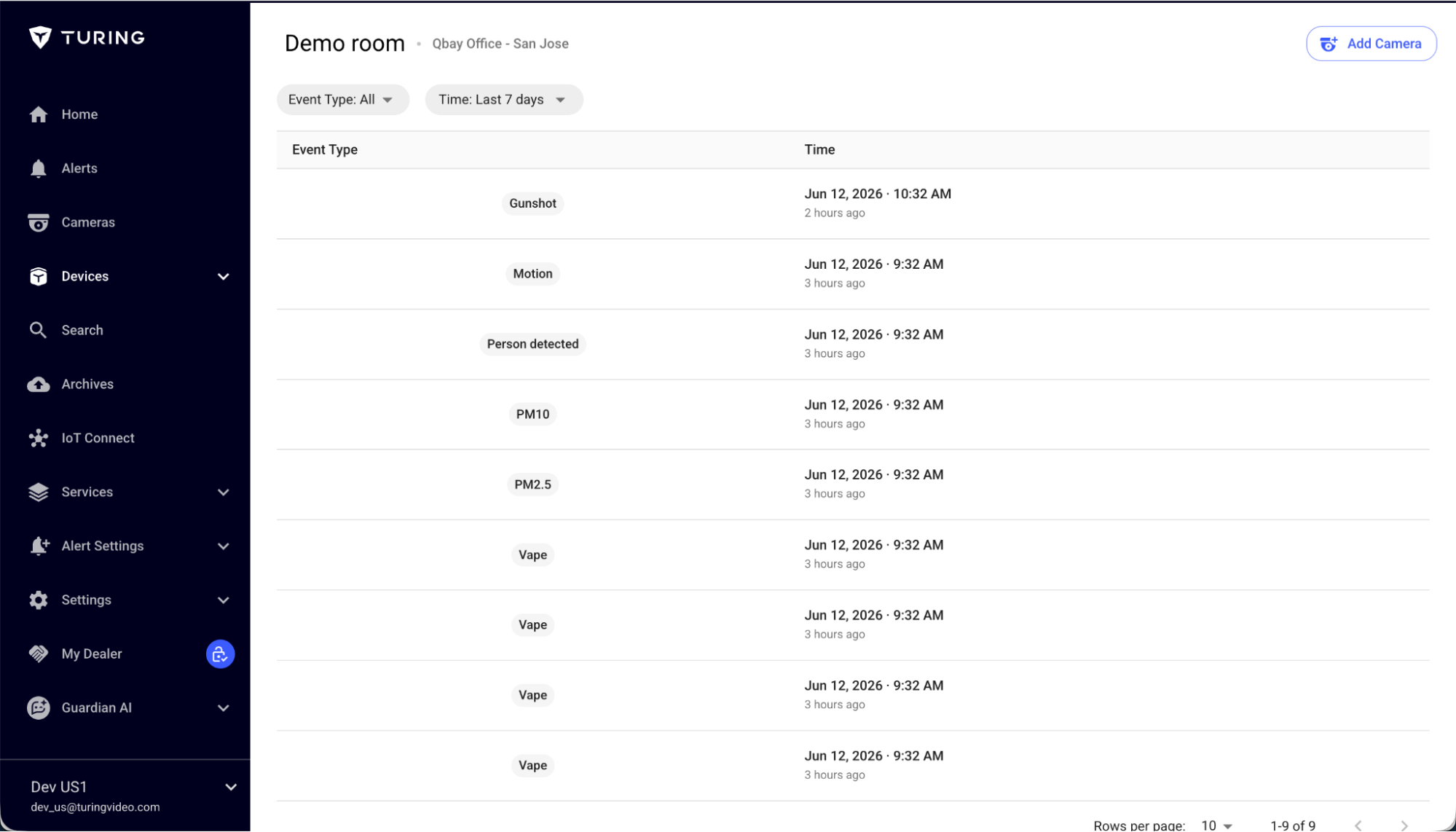
Triton sensors support a wide range of event types including gunshot, motion, person detected, vape, PM2.5, and PM10.
Multi-Sensor Support
Connect multiple Triton sensors across your sites, each individually mapped to its own camera for complete coverage.
Simple API Key Setup
Generate an API key in Turing Vision and copy it to the Triton platform. The key is shown only once — save it immediately.
How to Set Up Triton Sensor Integration
Follow these simple steps to connect your Triton sensors to Turing Vision.
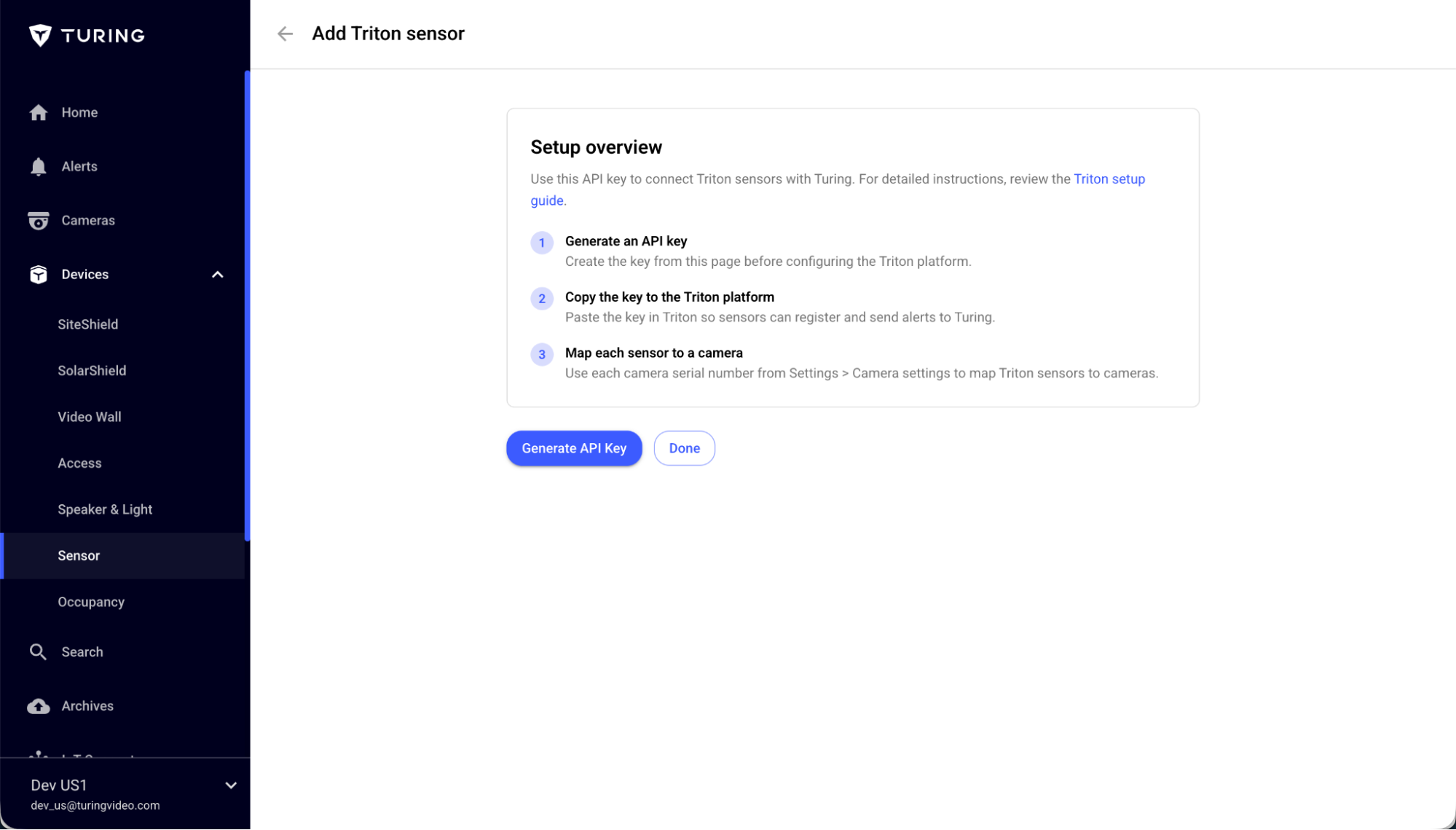
Go to Device > Sensor and click Add Sensor
Go to Device > Sensor and click Add Sensor.
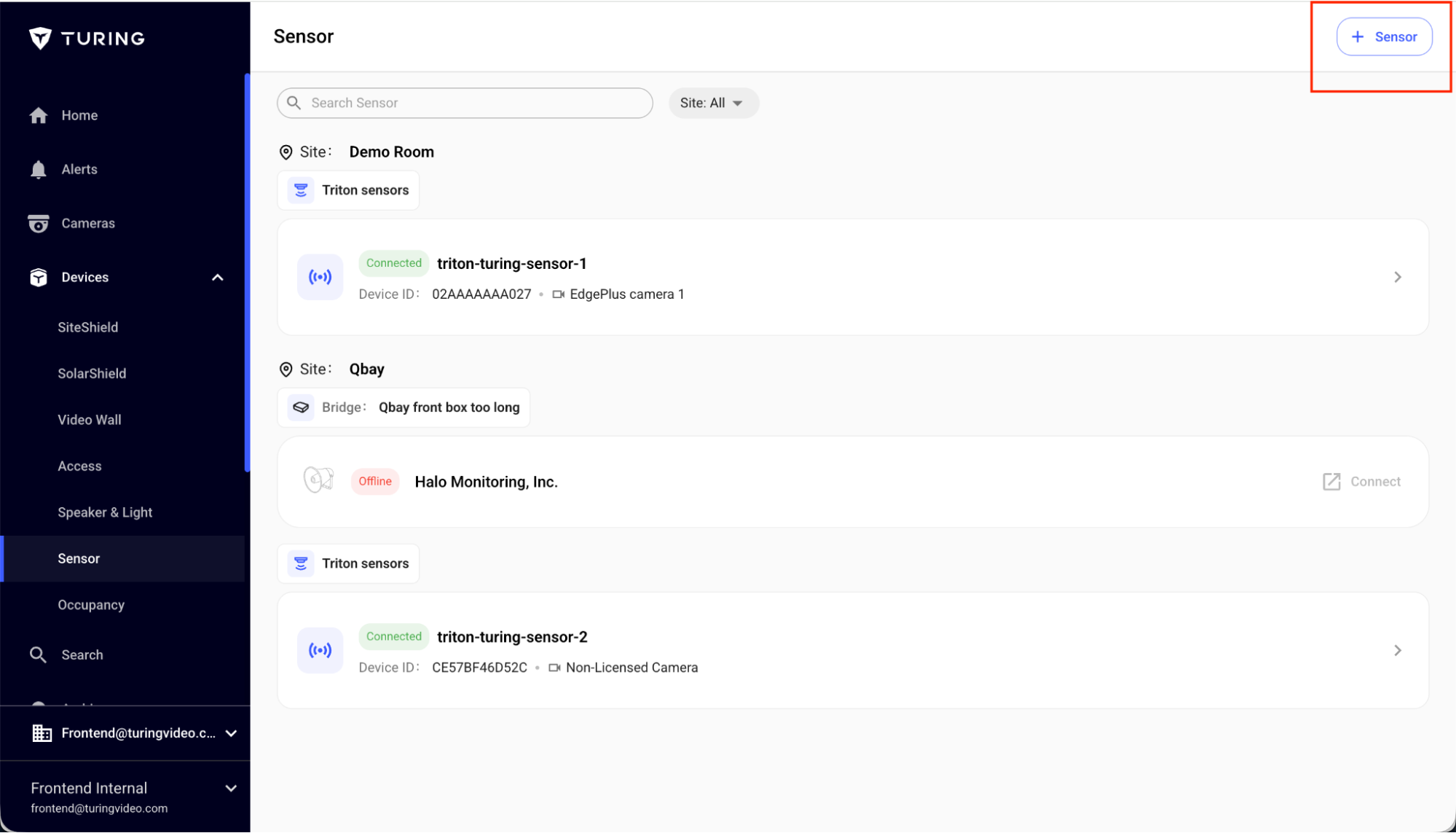
Select Triton Sensor from the options provided
Select Triton Sensor from the options provided.
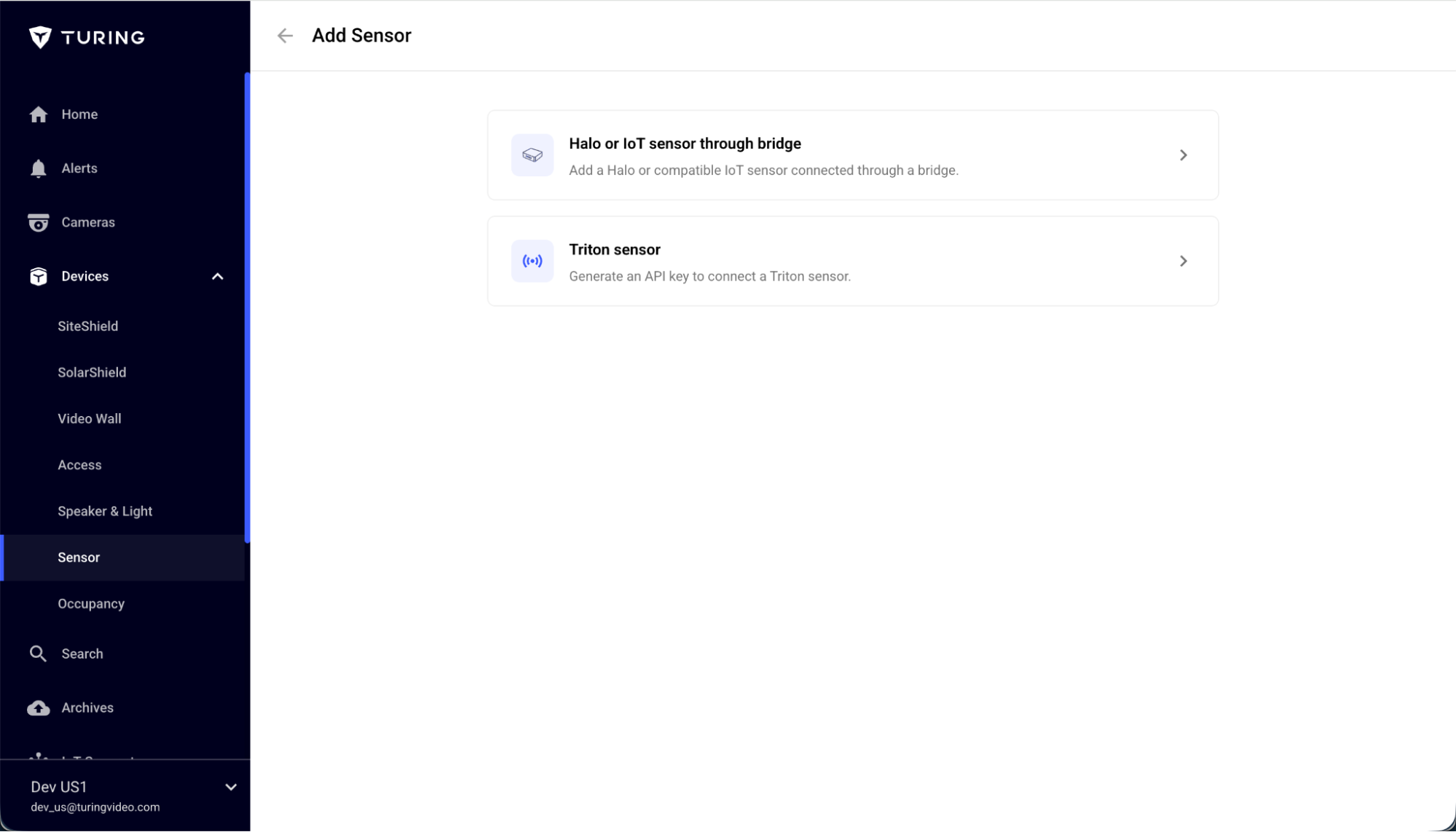
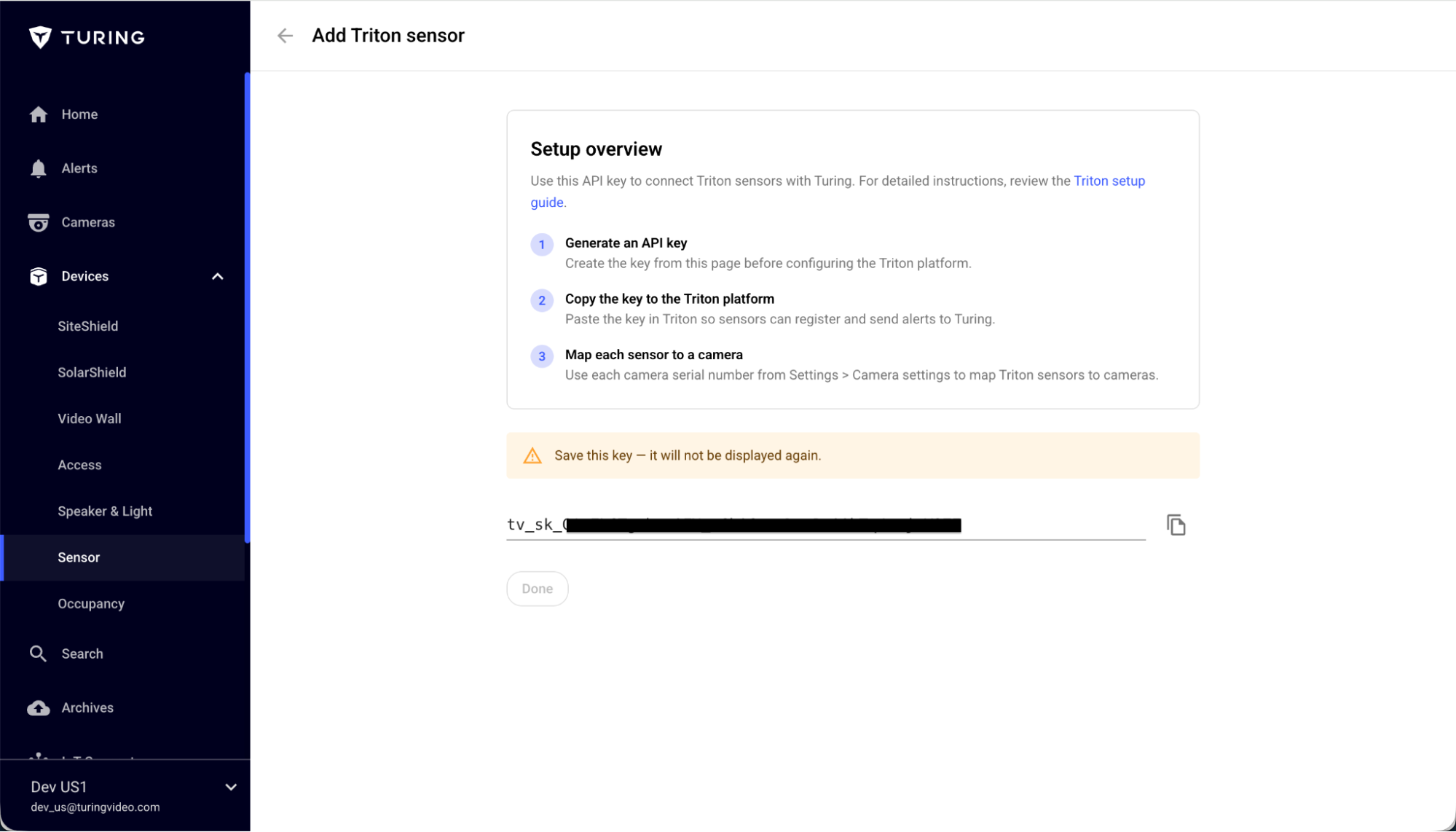
Generate your API key
Generate your API key. Make sure to copy and save this key immediately, as it cannot be viewed again. If you lose the key, you will need to delete the entry and generate a new one. Upon generating a new key, it has to be updated on the Triton platform manually.
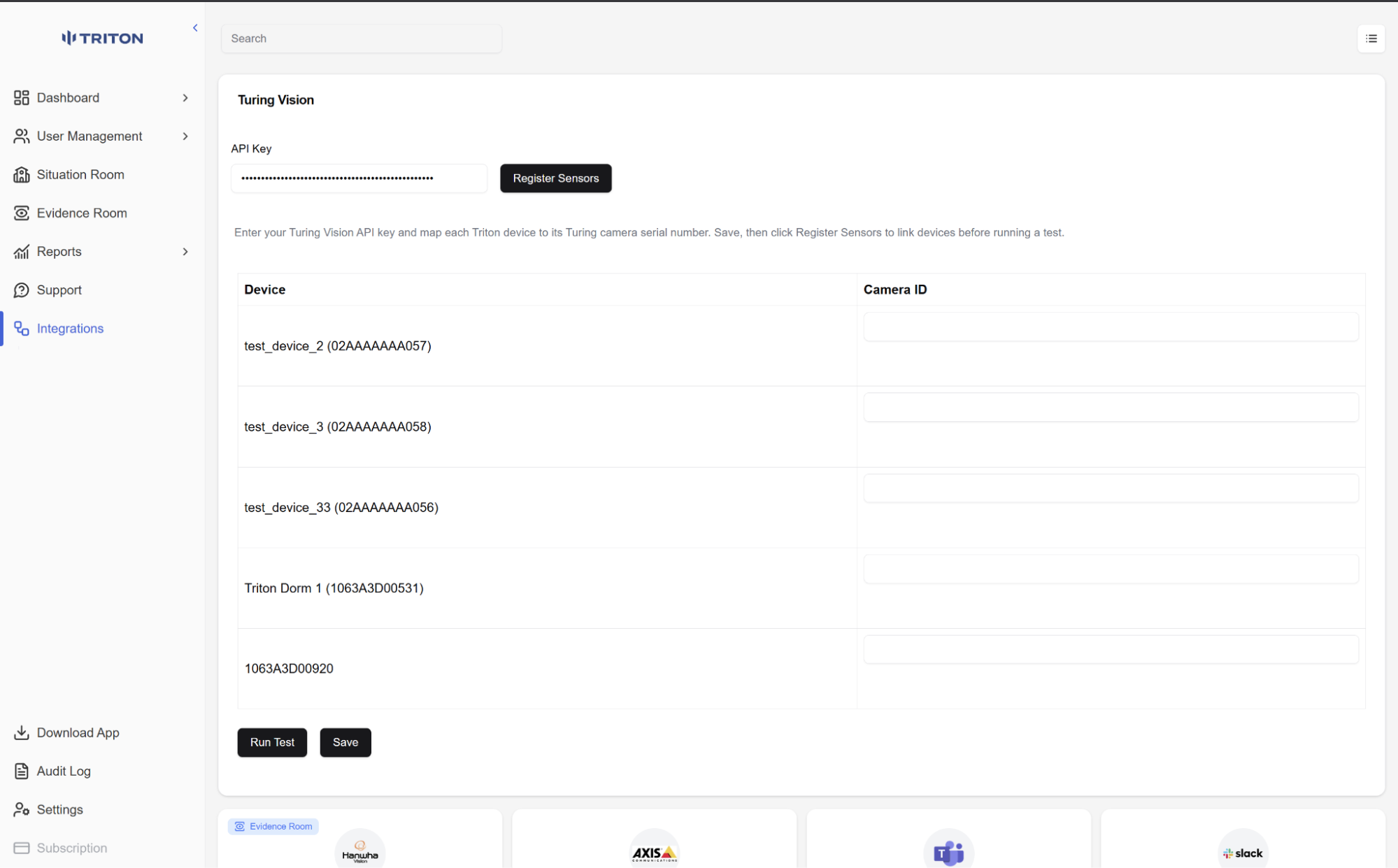
Navigate to Triton Cloud and paste the API key there
Navigate to Triton Cloud and paste the API key there.
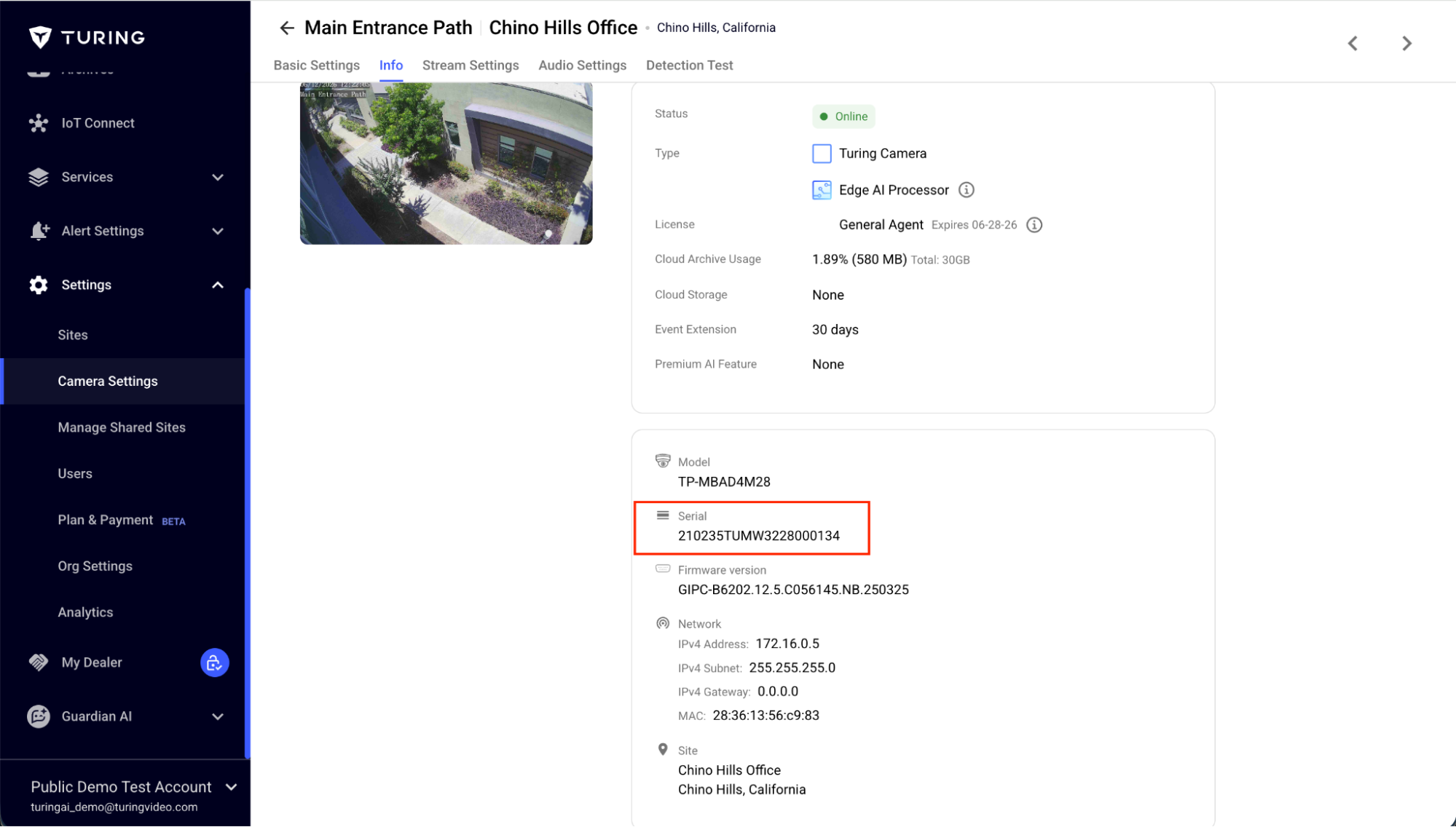
Link the sensor to a camera
Link the sensor to a camera by entering the camera's serial number, which you can find in your Camera Settings.
Navigate again to Triton Cloud and paste the camera serial number
Navigate again to Triton Cloud and paste the camera serial number in the Camera ID field that corresponds to the Triton Sensor.
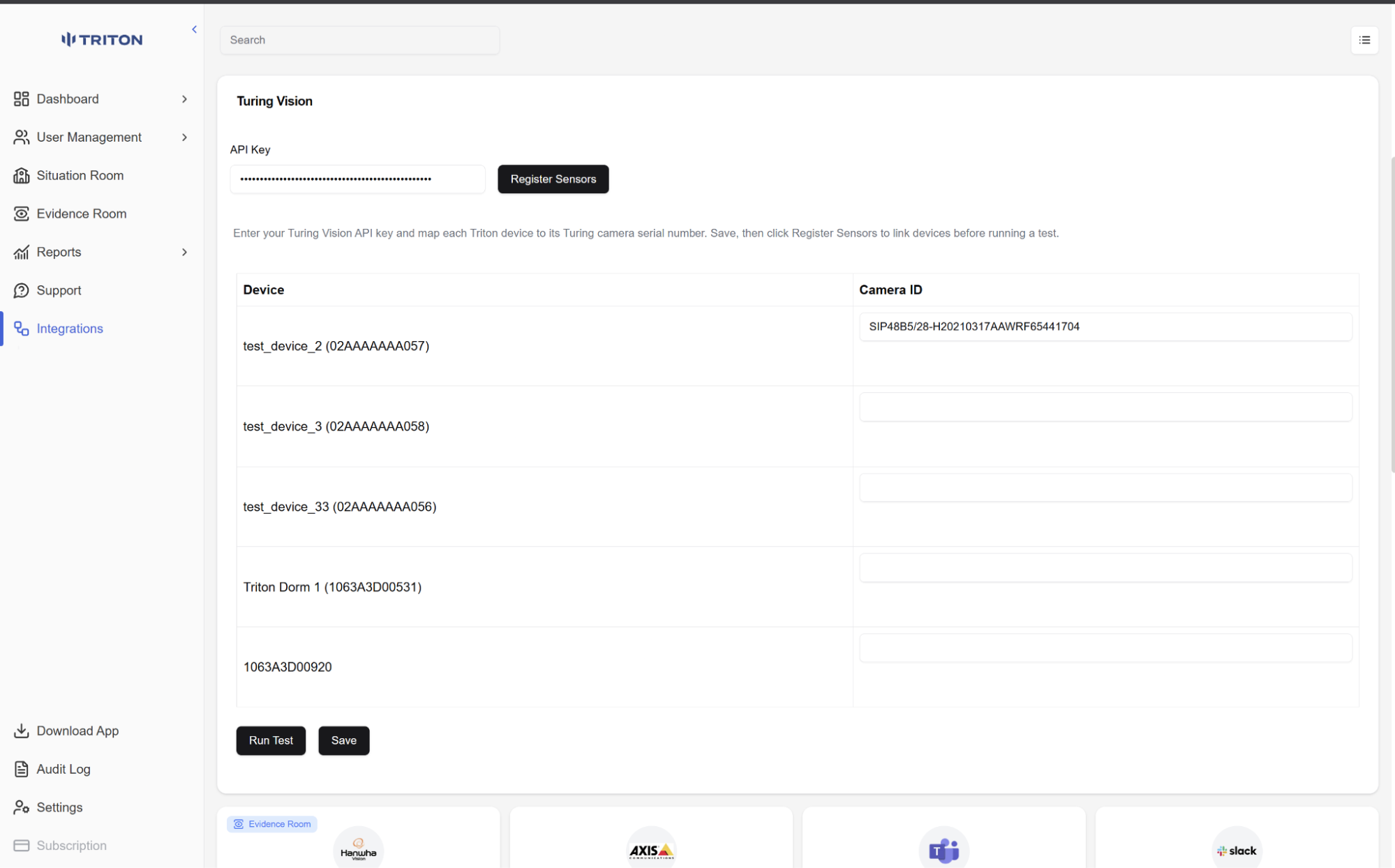
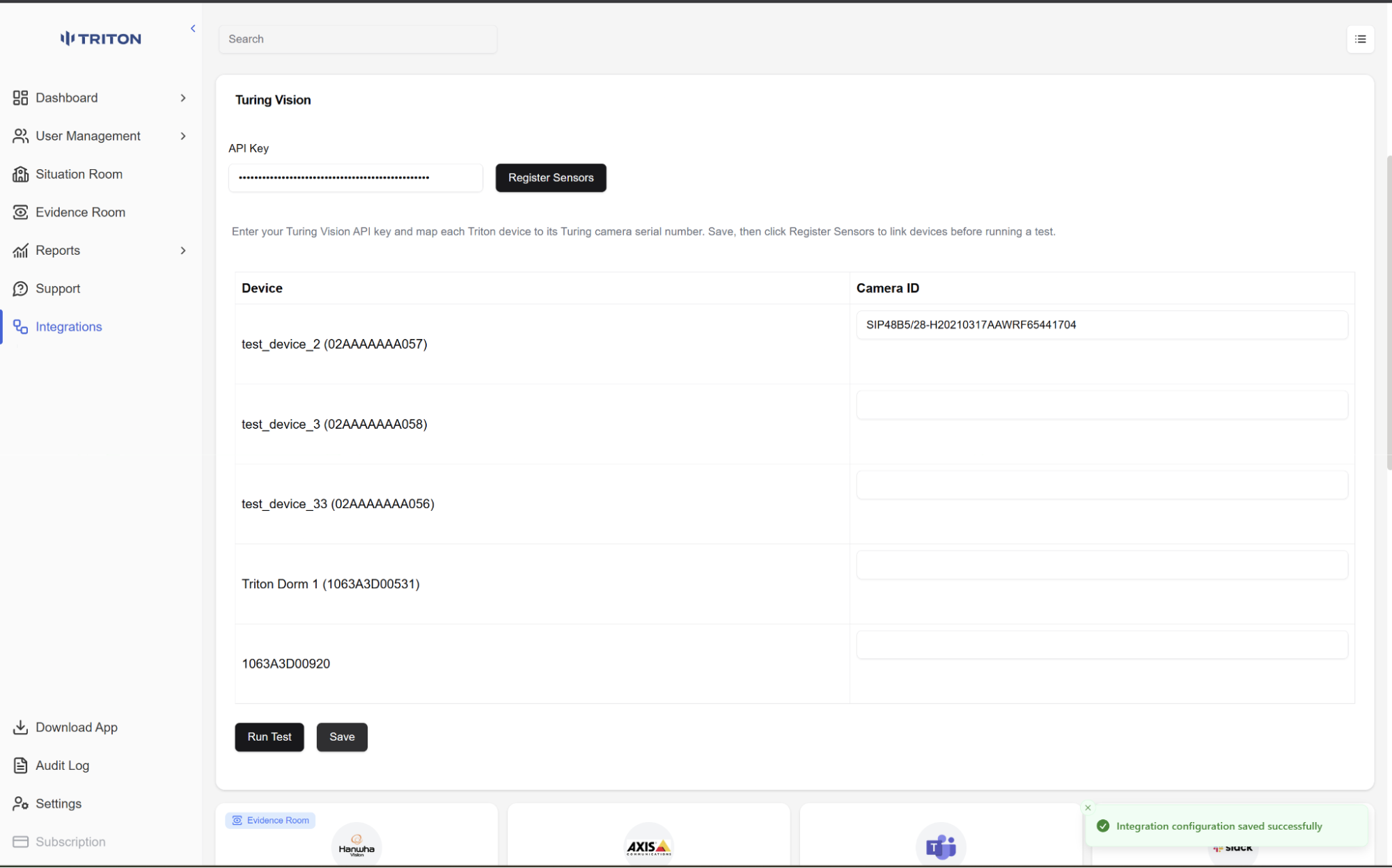
Hit Save and confirm success
After that, hit save and make sure you get a successful message on the bottom right.
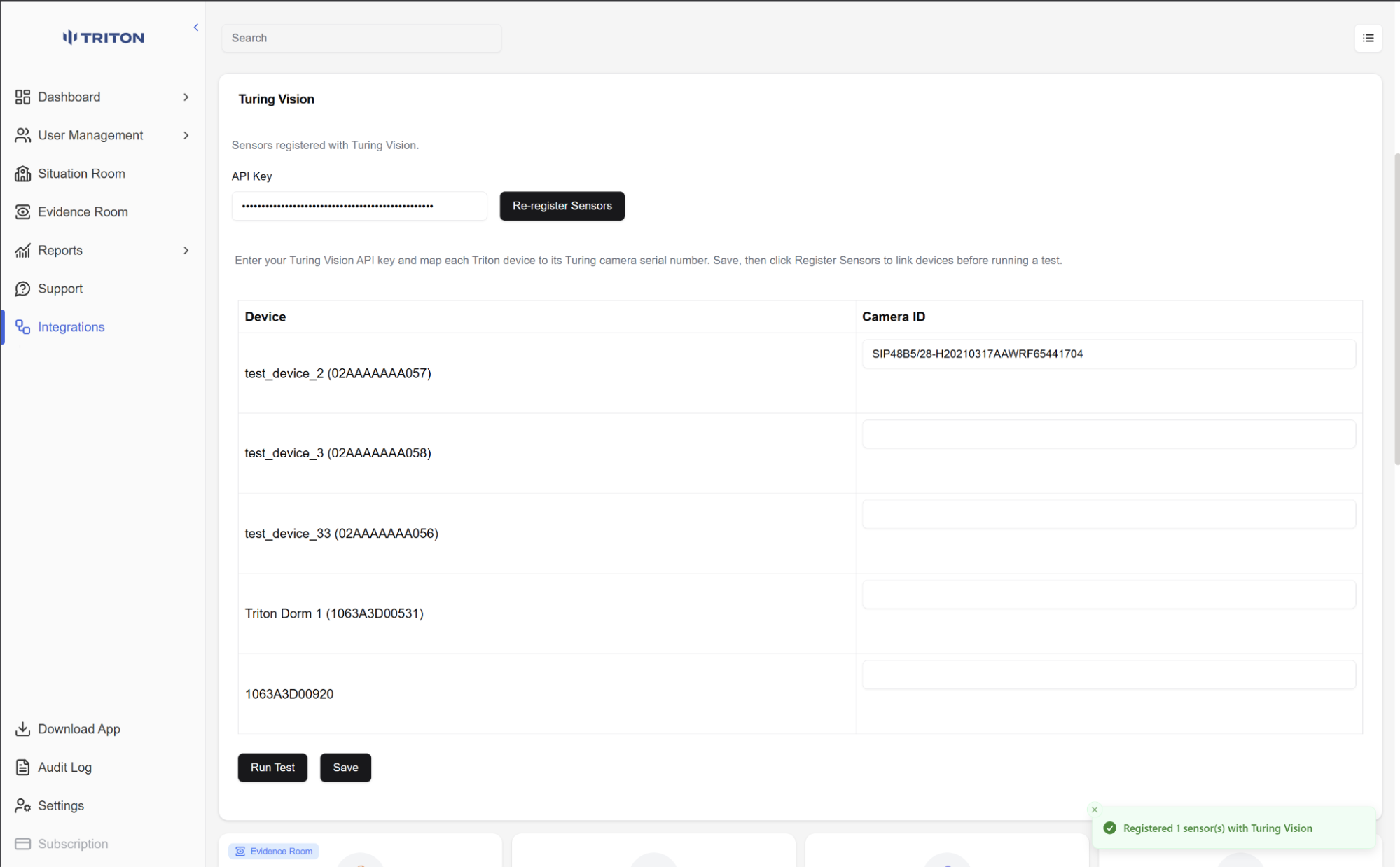
Click Register Sensor and register them
After you save all the camera IDs, click on Register Sensor and register them. Make sure you get the "Register x sensors with Turing Vision" message on the bottom right.
Run a test to verify
Once complete, you can run a test to verify if everything is working right or not.
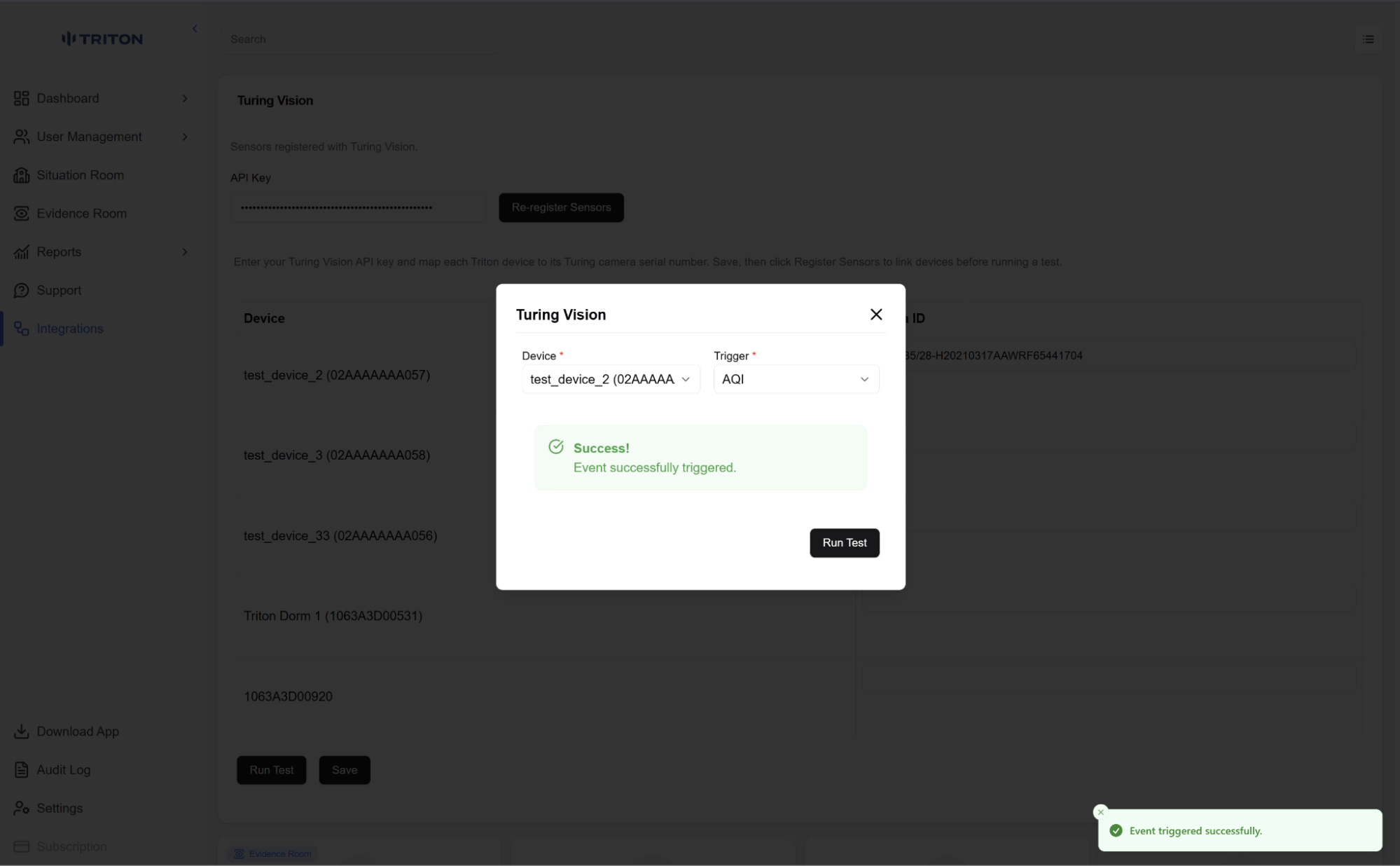
Alerts and sensors are now active
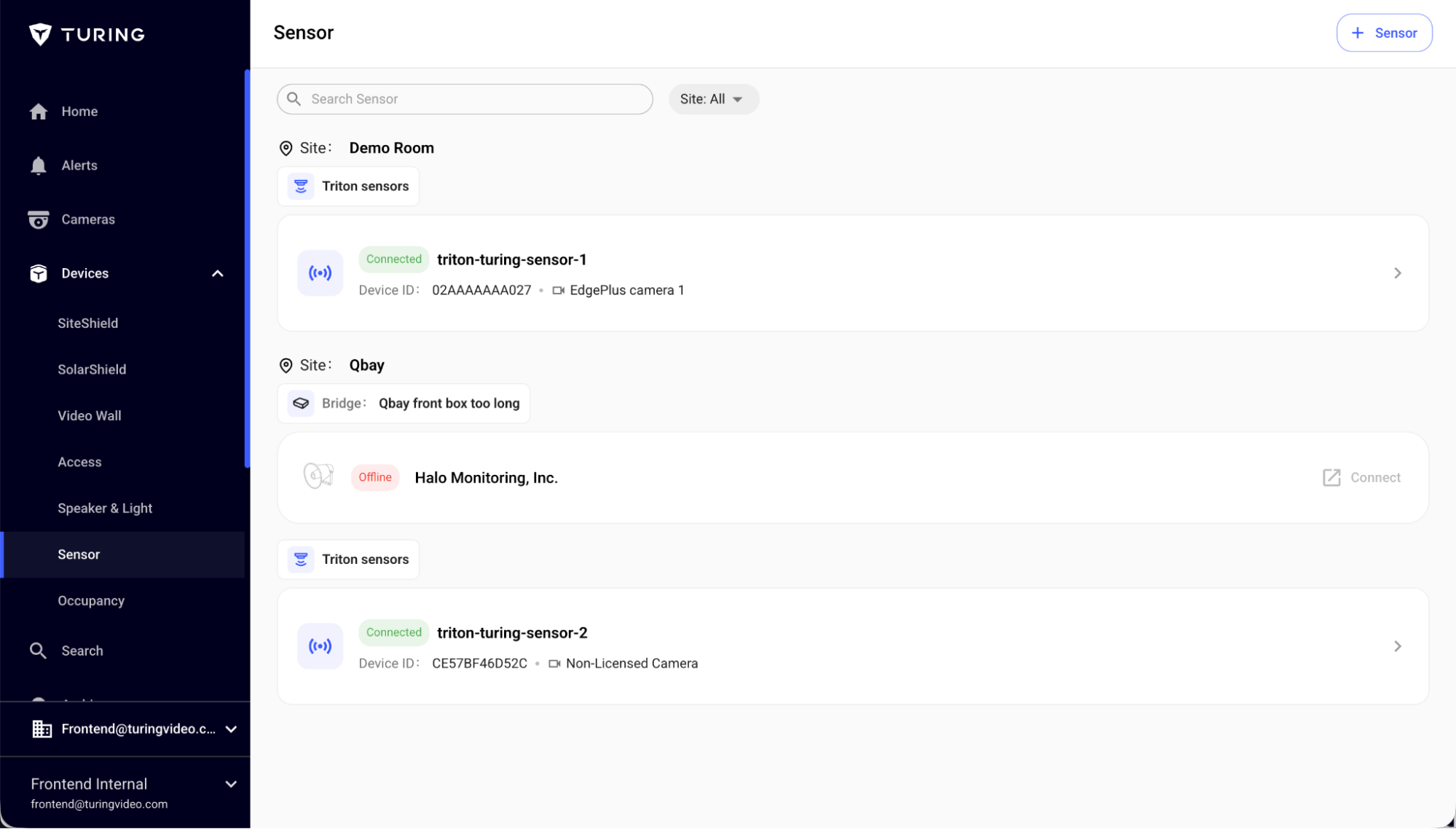
Alerts and sensors registered will appear under Devices > Sensors. Test alerts will show up under the respective sensor. Once verified, your Triton sensors are successfully connected to the Turing Vision platform, and alerts will now be active.